
Facebook Business Manager: How to Set It Up Step by Step
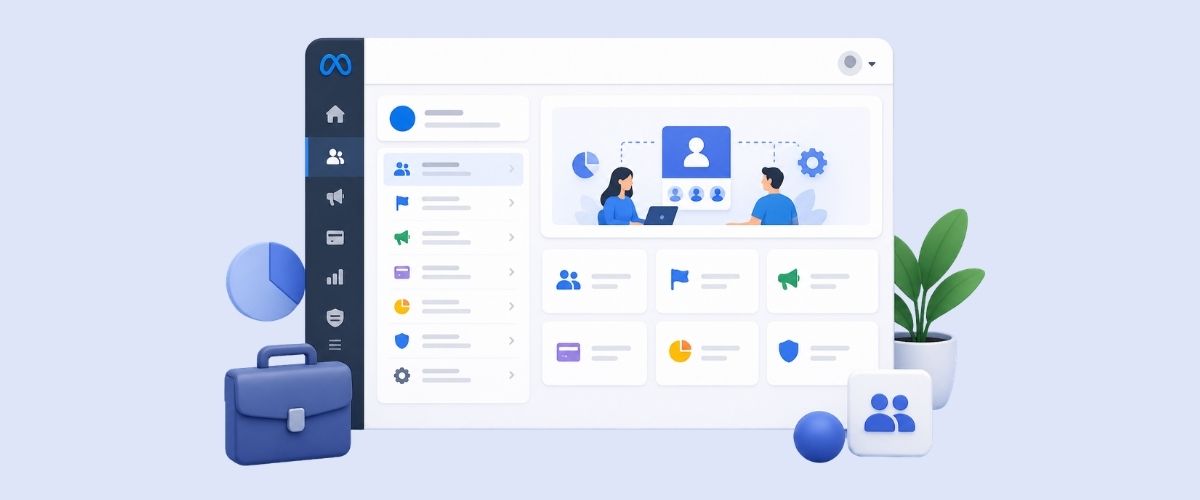
If you run a business and want to advertise on Facebook or Instagram, you need a Facebook Business Manager. It keeps everything in one place. Your pages, your ad accounts, your team members. No more jumping between personal profiles to manage your business ads.
A lot of small business owners put this off because it sounds complicated. It really is not. The platform has improved a lot over the years and the setup process is fairly logical once you know the order to do things in.
This guide walks you through the whole setup process. It is straightforward. You do not need technical skills to follow along. By the end, you will have a properly structured account that is ready for advertising.
What Is Facebook Business Manager?
Facebook Business Manager (now part of Meta Business Suite) is a free platform. It lets you manage your Facebook and Instagram business assets separately from your personal account. You can link multiple pages, run ad campaigns, and give team members or agencies access without sharing your personal login.
A lot of businesses skip setting this up properly and end up with a messy account structure. Getting it right from the start saves you a lot of headaches later, especially when you start running paid social media advertising at any real scale.
What You Need Before You Start
Before you log in, make sure you have these ready:
- A personal Facebook account (this is just used to verify your identity)
- A Facebook business page
- A business email address
- A credit or debit card for billing
- Your Instagram business account login (if applicable)
Step 1: Create Your Business Manager Account
Go to business.facebook.com and click "Create Account." Log in with your personal Facebook account. Facebook uses this to verify who you are. It does not make your personal profile visible to others in your business account.
You will be asked for your business name, your name, and your business email address. Fill these in and hit Submit. Facebook will send a confirmation email. Check your inbox and click the link to confirm. Once that is done, your Business Manager account is live.
Step 2: Add Your Facebook Business Page
Your Business Manager needs at least one Facebook page connected to it. Without this, you cannot run any ads.
Here is how to add your page:
- In Business Manager, go to Business Settings
- Click Pages under the Accounts section
- Click Add and choose one of three options:
- Add a Page (you already own it)
- Request Access to a Page (you want to manage someone else's page)
- Create a New Page (you do not have one yet)
If you already have a Facebook business page, just select "Add a Page" and search for it by name. Once added, it will appear under your Business Manager assets.
Step 3: Set Up Your Ad Account
Your ad account is where all your Facebook ad campaigns live. You need one to run any paid activity.
Go back to Business Settings and click Ad Accounts. Then click Add and choose from:
- Add an Ad Account (existing account you already have)
- Request Access to an Ad Account (for agency or client work)
- Create a New Ad Account (if you are starting fresh)
When creating a new ad account, you will set the account name, time zone, and currency. Pick your local time zone and currency here. Changing these later is not easy, so get it right the first time.
Step 4: Add a Payment Method
No payment method means no ads. This is a step a lot of people forget until they are trying to launch a campaign. Facebook accepts credit cards, debit cards, and PayPal depending on your country.
- Go to Business Settings then Payments
- Click Add Payment Method
- Enter your card details and save
It is worth adding a secondary payment method too. If your primary card gets declined or expires, your campaigns will pause. Having a backup keeps things running without interruption. You can also set an account spending limit here, which is useful if you want to cap how much gets charged in total before ads stop automatically.
Step 5: Connect Your Instagram Account
If your business uses Instagram, linking it here gives you a unified view of all your social media management in one spot. It also means you can boost posts and run story ads without needing to leave Business Manager.
Go to Business Settings, then click Instagram Accounts. Click Add and then Connect Your Instagram Account. A new login window will appear. Enter your Instagram credentials. Once logged in, the account will be linked automatically.
From here, you can run Instagram ads through the same interface you use for Facebook. No need to switch between platforms. If you manage Instagram as part of a broader social media strategy, having it connected here keeps reporting and budgeting in one place.
Step 6: Add Team Members and Assign Roles
This is one of the more useful features of Business Manager. You can give other people access without sharing passwords.
Under Users, you will find two options:
- People for employees or team members
- Partners for agencies or freelancers (like a digital marketing agency you work with)
When you add someone, you assign them a role. There are two main Business Manager roles:
- Admin can manage everything, including settings and billing
- Employee can only access what you specifically assign to them
For ad accounts specifically, there are three roles:
- Admin has full control
- Advertiser can create and manage ads
- Analyst can only view performance data
Give people the minimum access they need to do their job. You can always adjust this later.
Step 7: Verify Your Domain
Domain verification is an important step that most guides skip over. Since Apple's iOS 14 update, Facebook has stricter rules around tracking. Verifying your domain helps make sure the data from your ad campaigns comes through properly.
To verify your domain:
- Go to Business Settings
- Under Brand Safety, click Domains
- Enter your website domain and click Add
You will be given three verification options:
- DNS verification (add a TXT record to your domain settings)
- HTML file upload (add a file to your website's root folder)
- Meta tag verification (add a code snippet to your homepage)
If you are using WordPress or Shopify, the meta tag option is usually the quickest. Once verified, Facebook will confirm the status and your domain will show as verified.
Step 8: Install the Meta Pixel
The Meta Pixel (formerly Facebook Pixel) is a small piece of code that goes on your website. It tracks what people do after clicking your ads. This is what lets you measure conversions, build retargeting audiences, and improve campaign performance over time.
Here is how to find it:
- In Business Manager, go to Business Settings
- Click Data Sources, then Pixels
- Click Add to create a new pixel
You will get a pixel ID and an installation code. Add this to the header section of your website. If you use a CMS like WordPress, there are plugins that make this easier. Alternatively, you can install it through Google Tag Manager.
Once the pixel is active, you can start collecting data on website visitors and use that for your paid advertising strategy
Step 9: Review Your Notification Settings
This one is small but worth doing. By default, Facebook will send you a lot of notifications. You can adjust what you actually receive so your inbox does not get buried. It only takes a couple of minutes and makes ongoing account management a lot less noisy.
- Go to Ad Account Settings
- Click Notifications
- Choose which alerts you want via email versus in-platform only
A good setup is to get email alerts for things like payment failures or disapproved ads, and leave less urgent updates as in-platform notifications only. That way, if something actually needs your attention, it will not get lost among a wall of routine updates.
Common Mistakes to Avoid
These are the things that catch a lot of new users out. Most of them are easy to avoid if you know what to look for, but they can cause real problems once you are actively spending on ads.
- Setting the wrong currency or time zone when creating an ad account. These cannot be changed after setup.
- Using a personal profile for ads instead of Business Manager. This limits your targeting and analytics options.
- Not verifying your domain before running ads. You will see data gaps if you skip this.
- Giving everyone admin access. Only give the level of access people actually need.
- Not adding a backup payment method. One declined card can pause all your running campaigns.
- Skipping the Meta Pixel. Without it, you cannot track what happens on your website after someone clicks an ad. This makes it very hard to measure whether your Facebook advertising is actually working.
What Comes Next
Once Business Manager is set up, you are ready to start building campaigns in Ads Manager. That is the part of the platform where you create the actual ads, set budgets, pick your target audience, and choose your placements. Getting familiar with the campaign structure, which goes campaign, ad set, then ad, will make things a lot easier when you start.
Business Manager is the foundation. Ads Manager is where the day-to-day work happens. It is worth getting comfortable with the layout before you start spending money, especially if you are new to Facebook advertising. Understanding how audience targeting works and how to read your results will make a big difference to how efficiently you spend your budget.
Get Your Business Manager Set Up Before Your Next Campaign
Setting up Facebook Business Manager the right way from the start gives you a cleaner account, better data, and fewer problems down the road. It takes maybe 30 to 45 minutes to do it properly the first time. That time investment pays off quickly once you start running ads.
If you are working with a team or planning to bring in outside help for your social media advertising, having Business Manager in place is not optional. It is the only secure way to give others access without handing over control of your personal Facebook account.
Take the steps one at a time. There is no rush. Once everything is connected and verified, you will have a solid base to run your campaigns from. If you would rather hand this off to someone who does it every day, the team at Karma Media is happy to help you get set up properly and hit the ground running.
.jpg)